
#AutoTranslate
Brief Description
What is Tools & More?
This page provides an overview of the various tools, systems and links that can help users of OpenTransportData.swiss.
Who is behind it?
The tools, systems, and links presented here were either developed by our team System tasks Customer information + (SKI+), our partners, or externals.
Why does the Open data platform to these tools?
Many of the tools help to better monitor and use the data and interfaces on OpenTransportData.swiss.
Functional Description
For dealing with HRDF timetable data
HRDF Duplicates
- Program code: https://github.com/openTdataCH/OJP-Showcase/tree/develop/apps/hrdf-duplicates-report
- Purpose: This tool makes it possible to identify contradictory journeys in the HRDF data and to check whether they are duplicates and validate similarities. Specifically, the system searches for *Z journey number records belonging to the same transport company. According to the HRDF definition, the ‘…Journey number a unique number – per shipment – within an administration…’ as an additional functionality, the tool also takes into account the validity periods for the journeys defined in the BITFELD.
- Instructions:
- First, the HRDF record (see https://data.opentransportdata.swiss/dataset/timetable-54-2026-hrdf), i.e. the day. In this case, the transport company must be selected, as this is unique for each transport company.
-

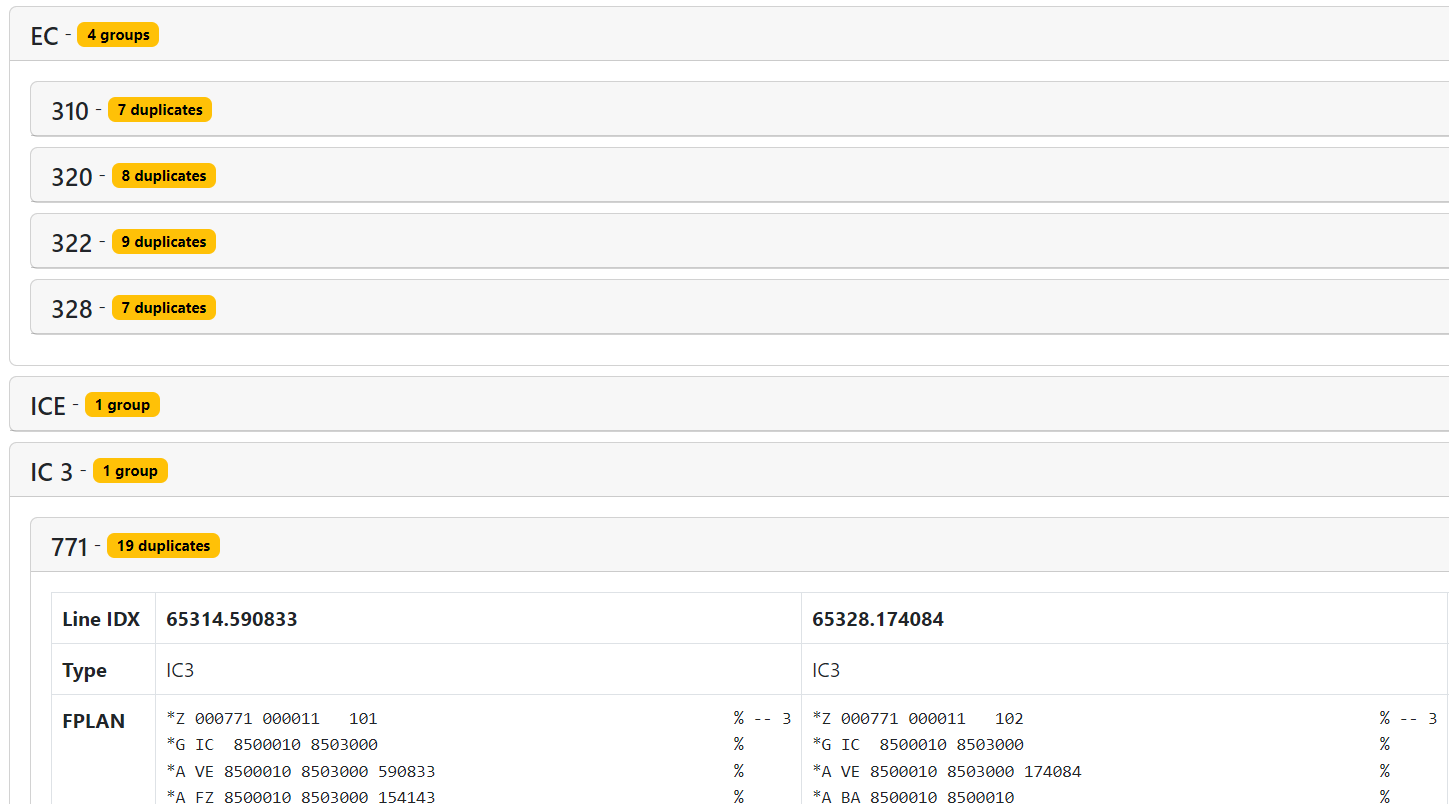
- The system then determines all trip numbers that occur multiple times for the transport company, taking into account the actual validity periods. The result is displayed grouped by service category and transport type. In the example, there are 4 trip numbers (310, 320, 322, 328) for the transport type ‘EC’ which are duplicates. Journey number 771 of type IC 3 appears to have 19 duplicates.

- In the detail view for the duplicates, a user can now look at and check the possible duplicates in more detail. A visual inspection of the first three entries clearly shows the differences; the variants displayed are therefore not ‘real’ duplicates. However, according to HRDF-RV (in theory), they would be.

- Note: the tool offers an alternative presentation by selecting ‘Consolidated Report’. Where all identified duplicates, across all transport companies, are displayed as a table throughout the day.
- The system then determines all trip numbers that occur multiple times for the transport company, taking into account the actual validity periods. The result is displayed grouped by service category and transport type. In the example, there are 4 trip numbers (310, 320, 322, 328) for the transport type ‘EC’ which are duplicates. Journey number 771 of type IC 3 appears to have 19 duplicates.


HRDF Bitfields
- Program code: https://github.com/openTdataCH/OJP-Showcase/tree/develop/apps/bitfeld-viz
- Purpose: Visual representation of the validity periods as they are supplied as bit code in the BITFELD file in HRDF format. More specifically, they are supplied as hexadecimal numbers which represent the bit order.
- Instructions:
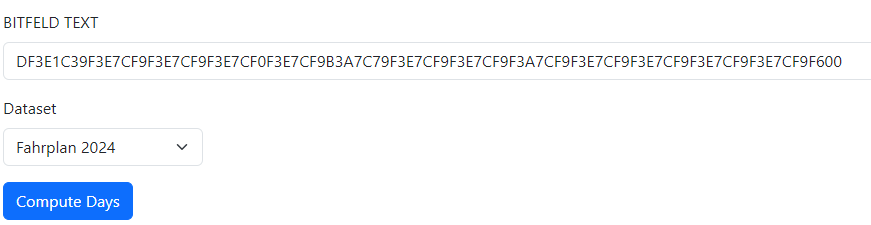
- First you enter the bit field value to be visualised. Then you select the timetable period to be applied.

- Then you see a visualization of the given data

- Note: You can also enter ‘real’ bit fields, i.e. a sequence of zeros and ones (011000101…).
- First you enter the bit field value to be visualised. Then you select the timetable period to be applied.

HRDF Query
- Program code: https://github.com/openTdataCH/OJP-Showcase/tree/develop/apps/hrdf-query
- Purpose: A very simple tool which only outputs the HRDFs with duplicates (see HRDF Duplicates).
- Instructions: Just open the link.
For dealing with GTFS timetable and real-time data
GTFS-Static & GTFS-RT Comparer
- Program code: https://github.com/openTdataCH/OJP-Showcase/tree/develop/apps/gtfs-rt-status
- Purpose: This tool compares the static GTFS data (static) with the real-time data to identify missing data elements in the respective data sets. Data elements include transport companies and specific trips.
- Instructions:
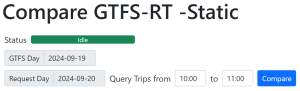
- The GTFS-Static and GTFS-Realtime files are preselected. You can specify the period to be checked for discrepancies. By pressing the ‘Compare’ button, the comparison is performed.
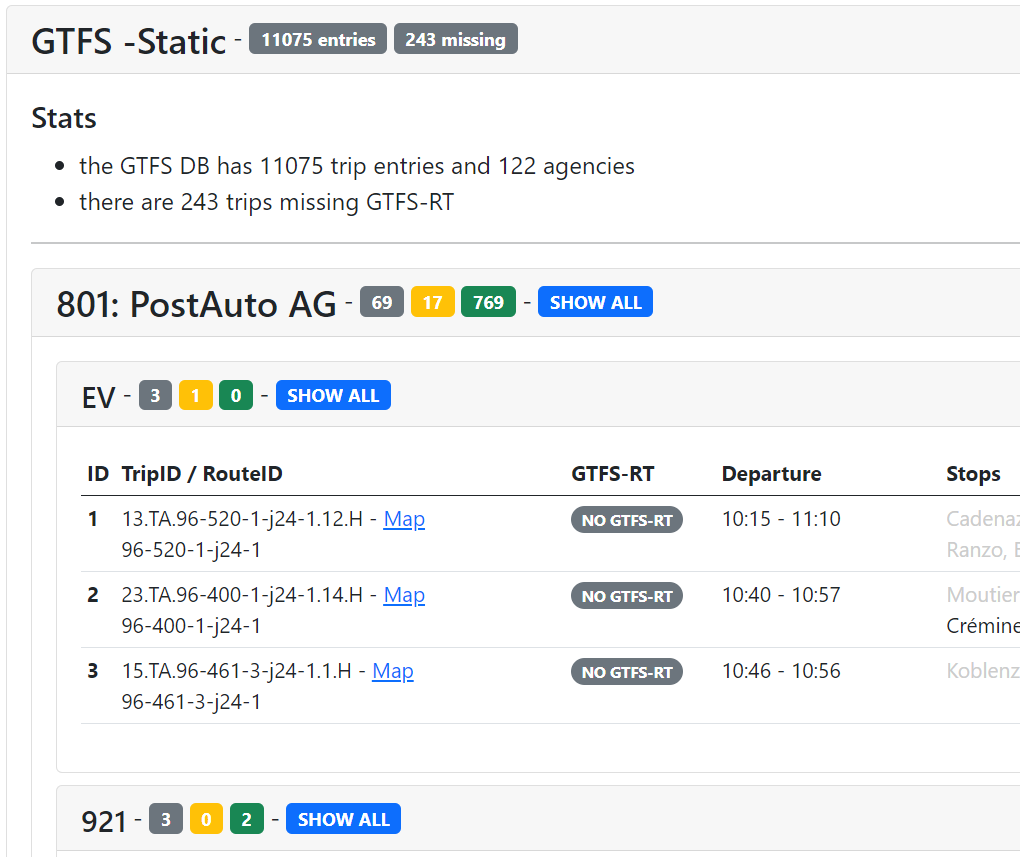
- After the comparison has been made, the differences to the static dataset based on the real-time dataset are first displayed. Specifically, a small overview with the number of differences (‘stats’). The transport companies are then available for the real-time data, but which are not in the corresponding register (https://data.opentransportdata.swiss/dataset/go-realtime) (‘Agencies missing from GO-Realtime’). The transport companies entered in the register but for which no real-time data could be found (‘Agencies without GTFS-RT’). And a list of GTFS real-time records for which no matching counterpart could be found in the static record (‘Missing GTFS static entries’).

- The overview for GTFS realtime is followed by an overview for GTFS static. First, as before, the number of stats with ‘reverse signs’. Then the list of static data for which real-time data is missing. In the ‘Stops’ column, the stops that have already been served are shown in light grey; the future stops are shown in black.

- The GTFS-Static and GTFS-Realtime files are preselected. You can specify the period to be checked for discrepancies. By pressing the ‘Compare’ button, the comparison is performed.


GTFS-Static & GTFS-RT Comparer Report
- Program code: https://github.com/openTdataCH/OJP-Showcase/tree/develop/apps/gtfs-rt-static-report
- Purpose: This is a visually appealing representation of the comparison report described above. It can be used, for example, to display unusual movements in the data sets. It can also identify recurring or unusual patterns. Unlike the ‘pure’ comparator, this view provides a monthly overview of the data collected there.
- Instructions:
- First you can select the month you want to visualize and the values you want to compare. The result is then displayed in the table below, where you can see the values for each day and time on that day. In the picture here, the amount of real-time data for the days and times in September 2024. The different shades of blue represent different GTFS datasets.
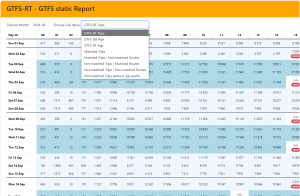
- Depending on the selected cell, the details of the data can be displayed on the right side. The ‘DATA’ tag indicates either server problems or file problems. MATCH means that too many records deviate. While ‘RT age’ indicates a RT record that deviates too much temporarily. Details can also be read here: https://github.com/openTdataCH/OJP-Showcase/blob/develop/tools/gtfs-rt-static-compare/docs/gtfs-rt-static-compare.md

- First you can select the month you want to visualize and the values you want to compare. The result is then displayed in the table below, where you can see the values for each day and time on that day. In the picture here, the amount of real-time data for the days and times in September 2024. The different shades of blue represent different GTFS datasets.


GTFS Shapes Checker
- Program code: TBC
- Purpose: Allows you to upload previously (by us) GTFS shapes files (e.g. https://tools.opentransportdata.swiss/gtfs-shapes-analyse-v2/data/gtfs-db-lookups-2023-09-05-mentz.json) visually validate.
- Instructions:
- Either you search for the trip you want in the shapes file or left-click on the map next to the graph shapes, which are visible as blue lines on the map (example highlighted in yellow in the screenshot). All nearby trips are then displayed and you can select one by clicking on a blue button on the right-hand side (labeled with the trip ID) to visually highlight it on the map. In addition, details are displayed in text at the bottom right.

- Either you search for the trip you want in the shapes file or left-click on the map next to the graph shapes, which are visible as blue lines on the map (example highlighted in yellow in the screenshot). All nearby trips are then displayed and you can select one by clicking on a blue button on the right-hand side (labeled with the trip ID) to visually highlight it on the map. In addition, details are displayed in text at the bottom right.

Creating shapes
- Program code: https://github.com/ad-freiburg/pfaedle
- Purpose: Create map matching for GTFS feeds based on OSM data
- Instructions: The instructions in the repo must be followed.
For dealing with SIRI event data
SIRI SX Overview
- With ?debug=1 at the end of the URL there are more details. In the text search you have to enter a SBOID or SSTID (no full text search)!
- Program code: https://github.com/openTdataCH/siri-sx-situation-monitor
- Purpose: Displays the event information incoming in SIRI-SX format as a simple listing.
- Instructions: There is no special configuration (unless you set ?debug=1)


SIRI SX Map
- Program code: https://github.com/openTdataCH/siri-sx-map?tab=readme-ov-file
- Purpose: Georeferenced display of the SIRI SX messages on a map.
- Instructions:
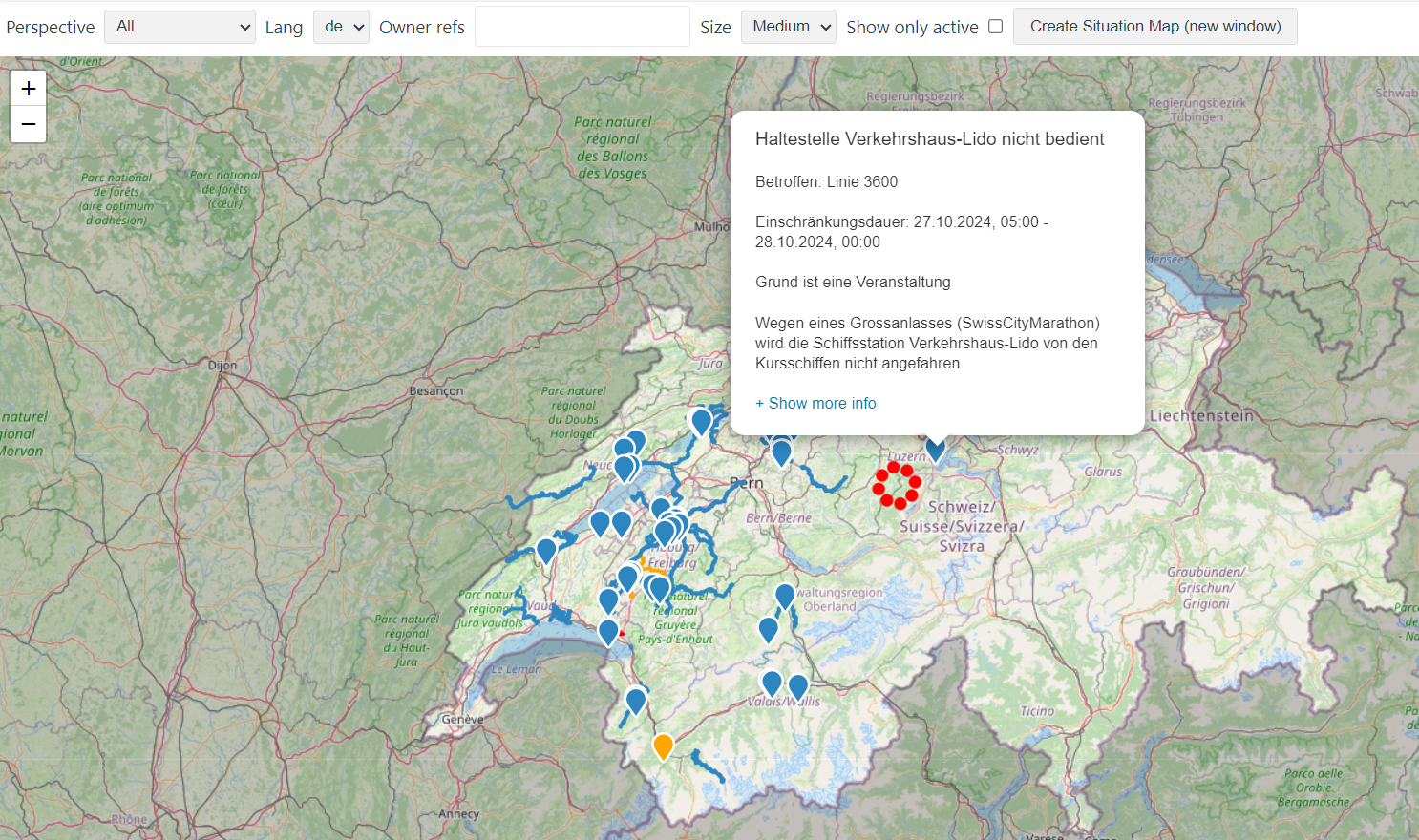
- It is a map on which the events are displayed. Clicking on the coloured markers or lines will give you more details. You can also select the language and some other parameters for the query and display.

- It is a map on which the events are displayed. Clicking on the coloured markers or lines will give you more details. You can also select the language and some other parameters for the query and display.
GTFS Query
- Program code: OJP showcase/apps/gtfs-query at develop · openTdataCH/OJP showcase (github.com)
- Purpose: This system makes it possible to display the relevant GTFS timetable details on the basis of given event data from SIRI-SX.
- Instructions:
- First, the tool must SIRI SX overview (see above) with the addition ?debug=1 (at the end of the URL).
- Then the developer view must be opened with the network protocol view of the browser.
- Then click on the ‘Build Link’ button. In the request, you will find a link in the header information beginning with https://tools.opentransportdata.swiss/gtfs-query/trips? (Example marked in yellow in the screenshot below):

- If you open this link in your browser, you get the following view. There you can see the timetable details in GTFS for the section affected by the incident. In the illustrated case, line 22 is affected by the incident with 59 entries in GTFS for the given date.


For dealing with the Open Journey Planner
OJP demo app
- OJP-1.0: opentdatach.github.io/ojp-demo-app/search?v=1
- OJP-2.0: opentdatach.github.io/ojp-demo-app/search
- Purpose: A tool for testing the OJP interface and its functionalities. The app is primarily intended to demonstrate the system’s capabilities and is not intended to be a full-fledged app! The app allows typical requests to be made to the OJP system using the OJP standard. This can be done at various endpoints (e.g. testing, or integration), for OJP standard versions 1 and 2. All the planned functionalities can be tried in the BETA version, but it is more often unstable.
- Instructions:
- Journey Search
- The ‘Journey Search’ tab is selected by default and you can carry out a classic route search by entering the start and destination of a desired journey in the ‘From’ and ‘To’. You can also select the desired (multi-)modality of the form of transport, e.g. ‘Mode at End’ and ‘Bicycle Sharing,’ i.e. travelling the last mile by bicycle. As described above, this configurability is for demonstration purposes – an end-user program would probably handle this differently. You can also set the day and the time (departure or arrival). PROD (production system & server) should be left with the environments. LA beta stands for Linking-Alps beta and allows queries as part of the LinkingAlps fare network to be tested (international connections towards South Tyrol/Austria/Slovenia). Use the ‘Debug XML’ button to view the XML request.

- Once the search has been performed, further functionalities are available to another. The ‘XML’ button in the search section can be used to display the request and query XML. In addition, the possible journeys (trips) are now displayed, with various meta-information, such as journey times. The ‘MAP’ button focuses the view on the map on the corresponding trip segment (trip leg). Clicking on the modality (e.g. ‘1st train – …’) has the same effect. Clicking on the line name and train number (e.g. ‘IC6 960’) gives you an overview of the stops of the means of transport as a whole. The ‘permalink’ button is worth mentioning, which makes it possible to save a predefined query in a link for sharing it later (e.g. for troubleshooting). The result also contains information on delays, the characteristics of the mode of transport, accessibility and rough price information.

- The result card behaves as usual elsewhere.
- The ‘Journey Search’ tab is selected by default and you can carry out a classic route search by entering the start and destination of a desired journey in the ‘From’ and ‘To’. You can also select the desired (multi-)modality of the form of transport, e.g. ‘Mode at End’ and ‘Bicycle Sharing,’ i.e. travelling the last mile by bicycle. As described above, this configurability is for demonstration purposes – an end-user program would probably handle this differently. You can also set the day and the time (departure or arrival). PROD (production system & server) should be left with the environments. LA beta stands for Linking-Alps beta and allows queries as part of the LinkingAlps fare network to be tested (international connections towards South Tyrol/Austria/Slovenia). Use the ‘Debug XML’ button to view the XML request.
- Station board
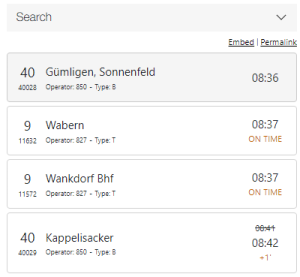
- By selecting the ‘Station Board’ tab, you can display the departure/arrival monitor for a specific stop. E.g. ‘Bern, Wankdorf Center’. All other functionalities behave in the same way as for ‘journey search’.

- After the search, the result is shown with the individual lines, their train/means of transport numbers and expected arrival and departure times, as well as possible delays.
- By selecting the ‘Station Board’ tab, you can display the departure/arrival monitor for a specific stop. E.g. ‘Bern, Wankdorf Center’. All other functionalities behave in the same way as for ‘journey search’.
- Trip Info
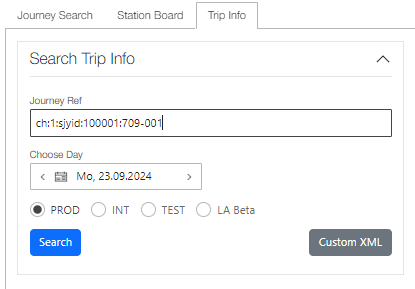
- The ‘Trip Info’ tab allows the detailed view of a specific train to be called up. This can also be seen, as described above, by clicking on the specific line and train number (e.g. IC1 709) in the journey search. This is also the way to get a ‘JourneyRef,’ i.e. a Swiss Journey ID (SJYID – Swiss journey ID), e.g. ‘ch:1:sjyid:100001:709-001’ (more on Swiss IDs https://www.oev-info.ch/de/branchenstandard/technische-standards/strukturelle-standards). This SJYID is then entered into the mask.

- The result shows you the different stops on the journey.

- The ‘Trip Info’ tab allows the detailed view of a specific train to be called up. This can also be seen, as described above, by clicking on the specific line and train number (e.g. IC1 709) in the journey search. This is also the way to get a ‘JourneyRef,’ i.e. a Swiss Journey ID (SJYID – Swiss journey ID), e.g. ‘ch:1:sjyid:100001:709-001’ (more on Swiss IDs https://www.oev-info.ch/de/branchenstandard/technische-standards/strukturelle-standards). This SJYID is then entered into the mask.
- Journey Search



API Explorer
- Program code: https://github.com/openTdataCH/api-explorer
- Purpose: API Explorer allows you to submit OJP 2.0 requests, for example, as well as requests from other APIs, to our backend. Its function is limited to the ‘purely text’ view . The appropriate authentication can be modified; a default key is already stored (see also Howto: Accessing our APIs with API keys).
- Instructions:
- A standard swagger interface provides the endpoints that can be requested, including sample requests. This is the URL to access the various APIs: https://opentdatach.github.io/api-explorer

- A standard swagger interface provides the endpoints that can be requested, including sample requests. This is the URL to access the various APIs: https://opentdatach.github.io/api-explorer

For handling real-time data for testing
OJP requests and responses, in some cases with SIRI and GTFS data recorded during operation, are made available on GitHub. This can be used as mock data for our own tests and shows, by way of example, how real-time data is communicated via different channels; this can vary depending on the means of transport or operator.
As a further way to test your own applications with real-time adjustments, specific cases are continuously uploaded to OJP 2.0 INT. Queries with test conditions for these adjustments are available on GitHub as the Postman and Bruno collections. These real-time use cases included here can be consulted for testing purposes. However, an API key for OJP 2.0 INT access is required which is with justification to opendata@sbb.ch can be applied for.
Further information can be found in the corresponding Repo to GitHub to be found.
& More
The following web page contains a list of useful tools, especially for handling GTFS data: https://github.com/MobilityData/awesome-transit